Excel Getting Started
Overview
KeySquare provides a python based Excel-Addin for connecting to the underlying platform.
The addin can be used to:
- Get the latest snapshot of data
- Subscribe to real-time data (using Excel RTD behind the scenes)
- Publish data
Data access is controlled using permissions configured in KeyAccess (details here).
Installation
KeySquare Excel-Addin can be installed without admin privileges.
The latest version of the addin can be found here
32-bit or 64-bit version?
Version of the plugin you need depends on the version of Microsoft Excel you have installed.
To find out, simply:
- Open MS Excel
- Go to File -> Account
- Click on 'About Excel'

Minimum Requirements
- Microsoft Excel for Office 365 (2015+)
- Access to running KeySquare platform (setup instructions)
Instructions
We suggest closing MS Excel before installing the addin
- Extract the downloaded
excel.zipto a temporarty location e.g.C://temp/keysquare-excel - Extract the contents of
excel.zipto this folder - You should see three files from the extract
keysquare-$version.zipsetup.cmdsetup.ps1
- Double click on
setup.cmdto run the setup script
Prefer to setup manually?
- Extract the contents of
keysquare-$version.ziptoC:\KeySquare\ExcelAddin(or a location of your choosing) - You should see the following files in the folder:
python-3.11.9-embed-amd64for 64-bit orpython-3.11.9-embed-win32for 32-bitkeysquare.xllkeysquare.inixloil.ini
- Create a new folder
%APPDATA%\xloil - Move
keysquare.iniandxloil.inito%APPDATA%\xloil
If you extracted keysquare-$version.zip to a folder other than C:\KeySquare\ExcelAddin, you will also need to modify the PATH properties in keysquare.ini and xloil.ini to point to your folder
- You'll be asked where to install the plugin. The default locatation is
C:\KeySquare\ExcelAddin. EnterYto continue orNto pick a different location - Once setup has finished, open MS Excel
- Go to File -> Options -> Add-ins
- Select Manage Excel Add-ins and click Go

- In the dialog window
- Click Browse and Navigate to
C:\KeySquare\ExcelAddin - Select
keysquare.xlland click OK - Make sure
KeySquareis selected in Add-ins dialog and click OK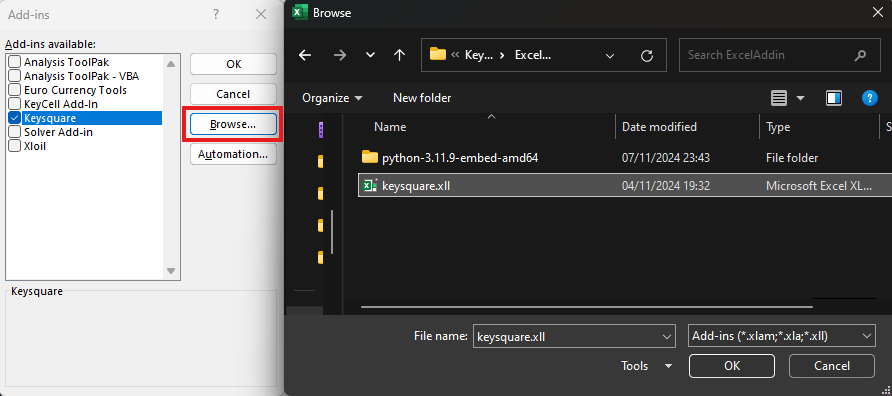
- Click Browse and Navigate to
- You should see a 'loading' message in Excel bottom bar followed by a new 'KeySquare' ribbon near the top.
It's best to restart Excel at this stage to ensure addin is installed properly
Connecting to KeySquare
The easiest way to connect to KeySquare is by using the controls in the Ribbon
KeySquare Ribbon

- The Info button provides links to useful resources relevant to KeySquare
- Connection details are comprised of three parts
- Hostname :: This is the server where KeyAccess is running
- Port :: This is the port to connect to KeyAccess
- App Name :: This is the application name to use to connect to KeySquare. This app name must be pre-registered in KeyAccess and permissioned to access relevant data
- Once connection details have been updated, click 'Connect' to start. The status will update to 'CONNECTED' to indicate successful connection
Connecting without Ribbon
If preferred, the following functions can be used to connect/disconnect to KeySquare:
KS_CONNECT
# To connect to KeySquare
KS_CONNECT(hostname: text, port: number, applicationName: text)
KS_DISCONNECT
# To disconnect
KS_DISCONNECT()
Platform Information
Following are useful functions to get more details about your session
KS_STATUS
Indicates the current status of your platform connection
Provides the following data:
Status: Either CONNECTED or DISCONNECTEDTime: Indicates the time this status was checked
KS_STATUS()
Example

KS_SESSION_DETAILS
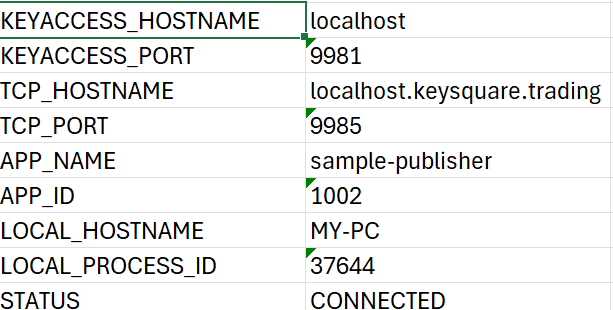
Details pertaining to your connection to KeySquare platform
KS_SESSION_DETAILS()
Example
Exploring Data
All data published on KeySquare platform has a unique topic. Some knowledge of the topic structure is required when subscribing to data.
For more information about KeySquare topics click here
Our Flexible topic is handled differently see Flexible Data which shows how it is used differently
KS_CATALOG
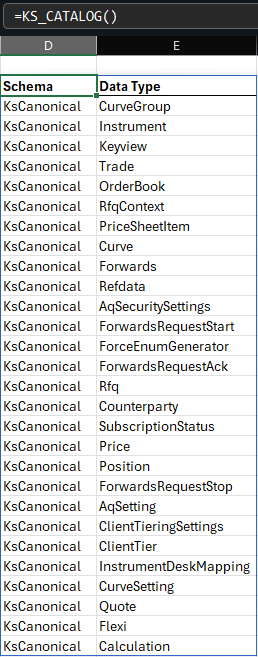
KS_CATALOG() can be used to get a list of all the data types published on the platform.
These data types are normally published by java applications on start-up
Details on how to add new data type here
Example
KS_CATALOG()
KS_SNAPSHOT
KS_SNAPSHOT can be used to get the latest snapshot of data for a particular data type.
It accepts the following arguments:
Data Type: [Required] This data type must be present in the catalogId: [Optional] This is usually data type specificGroup: [Optional] This is usually data type specificSource: [Optional] This is usually the publisher application nameSchema: [Optional] This is required if there are multiple data types with the same nameFields: [Optional] A range of fields to return data for. This can be specified to either fix the column header or to return a subset of fields
Examples
The following examples assume that a data type with name: Price is available
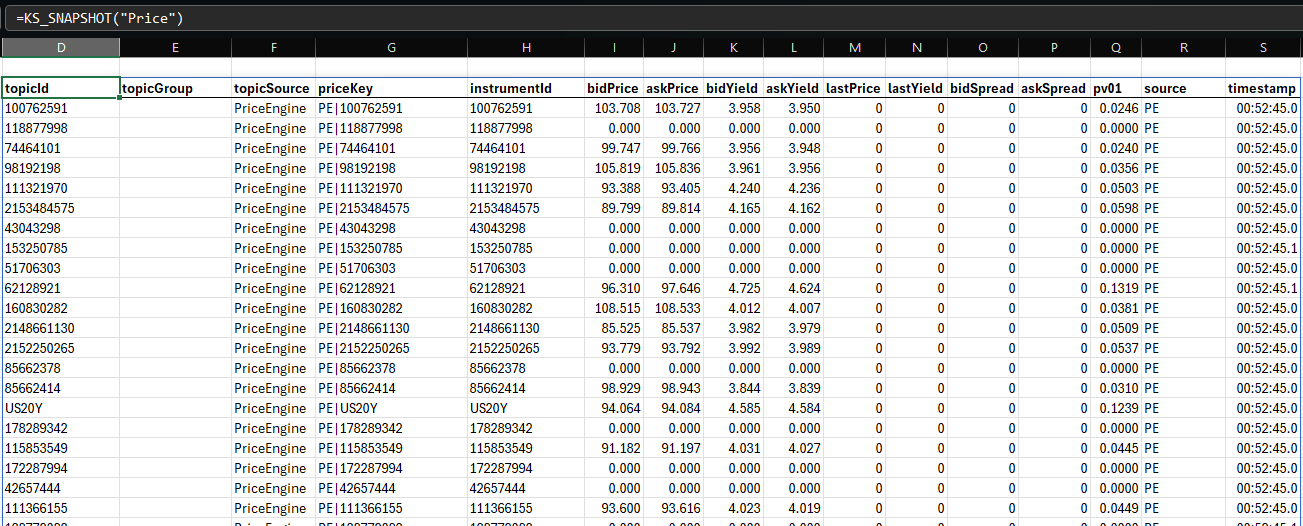
# Get all records of type: Price
KS_SNAPSHOT("Price")
# Get latest Price(s) for US10Y instrument regardless of source
KS_SNAPSHOT("Price", "US10Y")

# Get latest Price(s) for US10Y instrument where source is CNBC
KS_SNAPSHOT("Price", "US10Y",,"CNBC")

# Get latest Price(s) for all instruments where source is CNBC
KS_SNAPSHOT("Price",,,"CNBC")

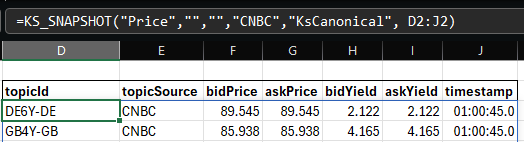
# Get latest Price(s) for all instruments where source is CNBC - only display a subset of fields
KS_SNAPSHOT("Price",,,"CNBC",,D2:J2)
KS_SAMPLE_MESSAGE
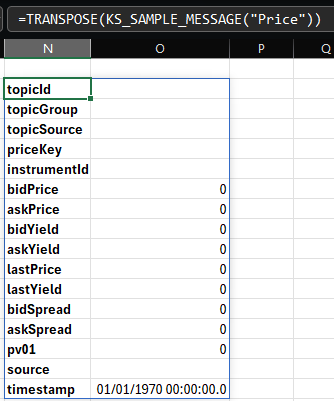
KS_SAMPLE_MESSAGE can be used to get an empty message. This is helpful to see what the field name and field value types are for a particular data type
Example
KS_SAMPLE_MESSAGE("Price")
Realtime Data
KS_SUBSCRIBE
KS_SUBSCRIBE can be used to get realtime data in excel.
It accepts the following arguments:
Data Type: [Required] This data type must be present in the catalogId: [Required] This is usually data type specificGroup: [Optional] This is usually data type specificSource: [Optional] This is usually the publisher application nameSchema: [Optional] This is required if there are multiple data types with the same nameFields: [Optional] A range of fields to return data for. This can be specified to either fix the column header or to return a subset of fields
Three key differences between
KS_SNAPSHOTandKS_SUBSCRIBEare:
KS_SNAPSHOTprovides the latest snapshot of requested data once whereasKS_SUBSCRIBEcontinues to update as new data is publishedKS_SNAPSHOTcan return multiple rows, whereasKS_SUBSCRIBEonly returns one row. If the supplied Id does not uniquely identify a record (e.g. where two 'source(s)' publish records with same id) inconsistent behaviour is observedKS_SNAPSHOTreturns headers when fields is not provided whereasKS_SUBSCRIBEnever returns headers.KS_SAMPLE_MESSAGEcan be used to acquire field names forKS_SUBSCRIBEif required
Publishing Data
KS_PUBLISH
KS_PUBLISH can be used to publish a new record for a particular data type.
It accepts the following arguments:
Data Type: [Required] This data type must be present in the catalogId: [Required] This is usually data type specificFields: [Required] Field names related to data to publishData: [Required] Data to publishGroup: [Optional] This can be used to group similar data togetherSource: [Optional] This is usually the publisher application nameSchema: [Optional] This is required if there are multiple data types with the same name
Use KS_SAMPLE_MESSAGE to get the list of field names and their corresponding types to know the structure of record to publish
time, topicId, topicGroup and topicSource are meta fields that will be auto-populated
Flexible Data
Whilst we recommend defining a data schema as an explicit contract between publisher(s) and subscriber(s) to avoid unwanted side-effects, it is at times desirable to relax this constraint for testing and POC purpose.
To support this use-case, KeySquare platform supports 'Flexible' publication and subscription. Following section describes how to use this feature in Excel Addin.
Flexible Snapshot
Flexible snapshotting works just like regular snapshot where data_type = Flexible, however you must provide Id, Group or Fields. This is to help ensure that all returned rows have the same fields.
Example
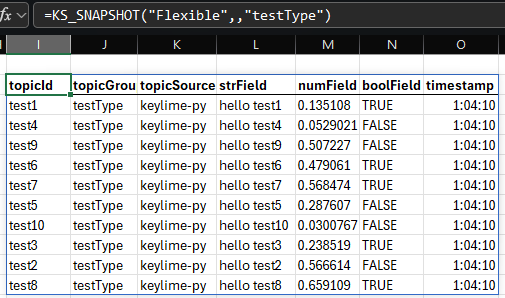
Note: we specify group = testType in the example above referring to data published in flexible publish example.
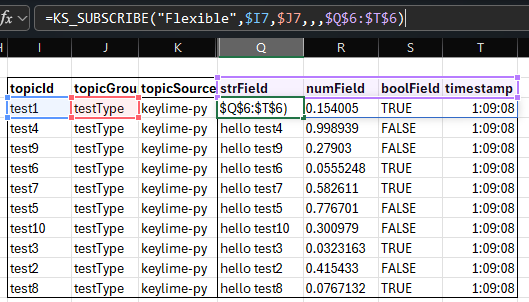
Flexible Subscribe
Flexible subscription works just like regular subscription where data_type = Flexible
Flexible Publish
Flexible publication works just like regular publication where data_type = Flexible
Example
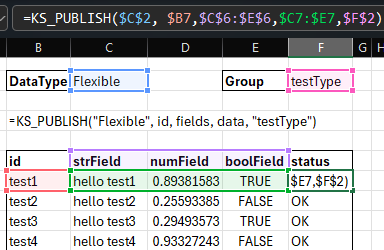
Although not required, we recommend setting group when publishing Flexible data to group similar data together.
This can then be used in KS_SNAPSHOT
Example