Bond Calculator
Overview
The Bond Calculator is the primary UI page for the Analytics Engine module. It lets you:
- Search for any instrument held in Static Data Server
- Calculate price or yield interactively for a chosen redemption date
- View yields to all call dates for callable bonds
- Inspect the full cashflow schedule
- Verify the internal QuantLib model state used by the analytics engine for troubleshooting
It is a useful tool both for day-to-day analytics and for verifying that Analytics Engine is producing correct results.
Searching for an Instrument
Use the search bar at the top of the page to find an instrument. You can search by free text (description, ticker) or by identifier (ISIN, CUSIP). Optionally filter by currency or instrument type using the dropdowns.
Results are fetched from Static Data Server. Click any result to load it into the calculator.
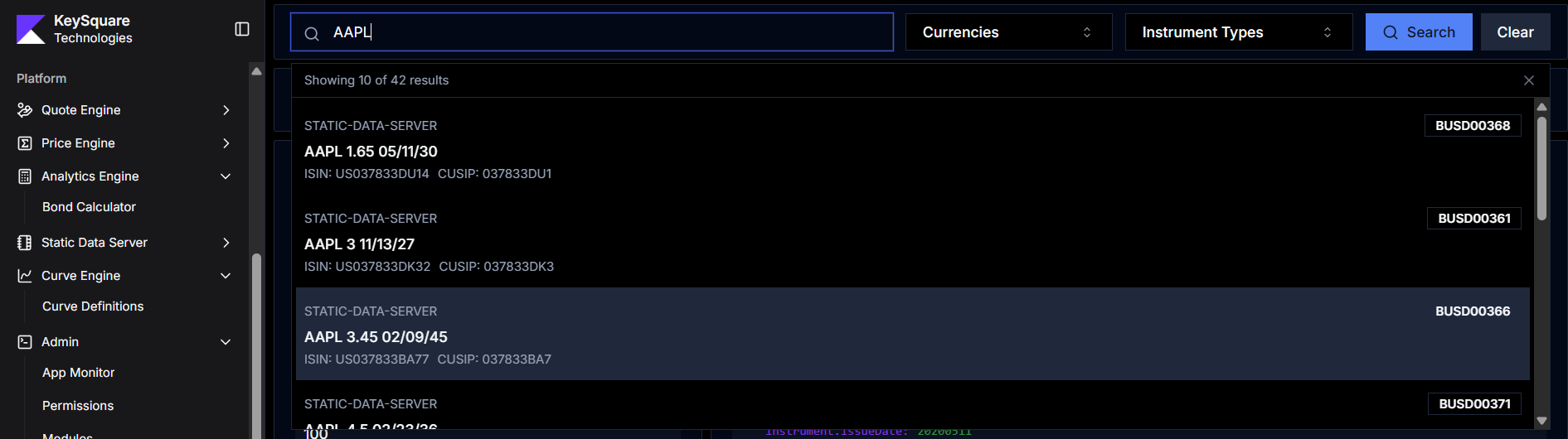
Once an instrument is selected, the page header shows its trade date, settlement date, description, and ISIN. The calculator panel and results panel will populate automatically.
Calculator Panel
The left-hand panel contains the calculator inputs and controls.
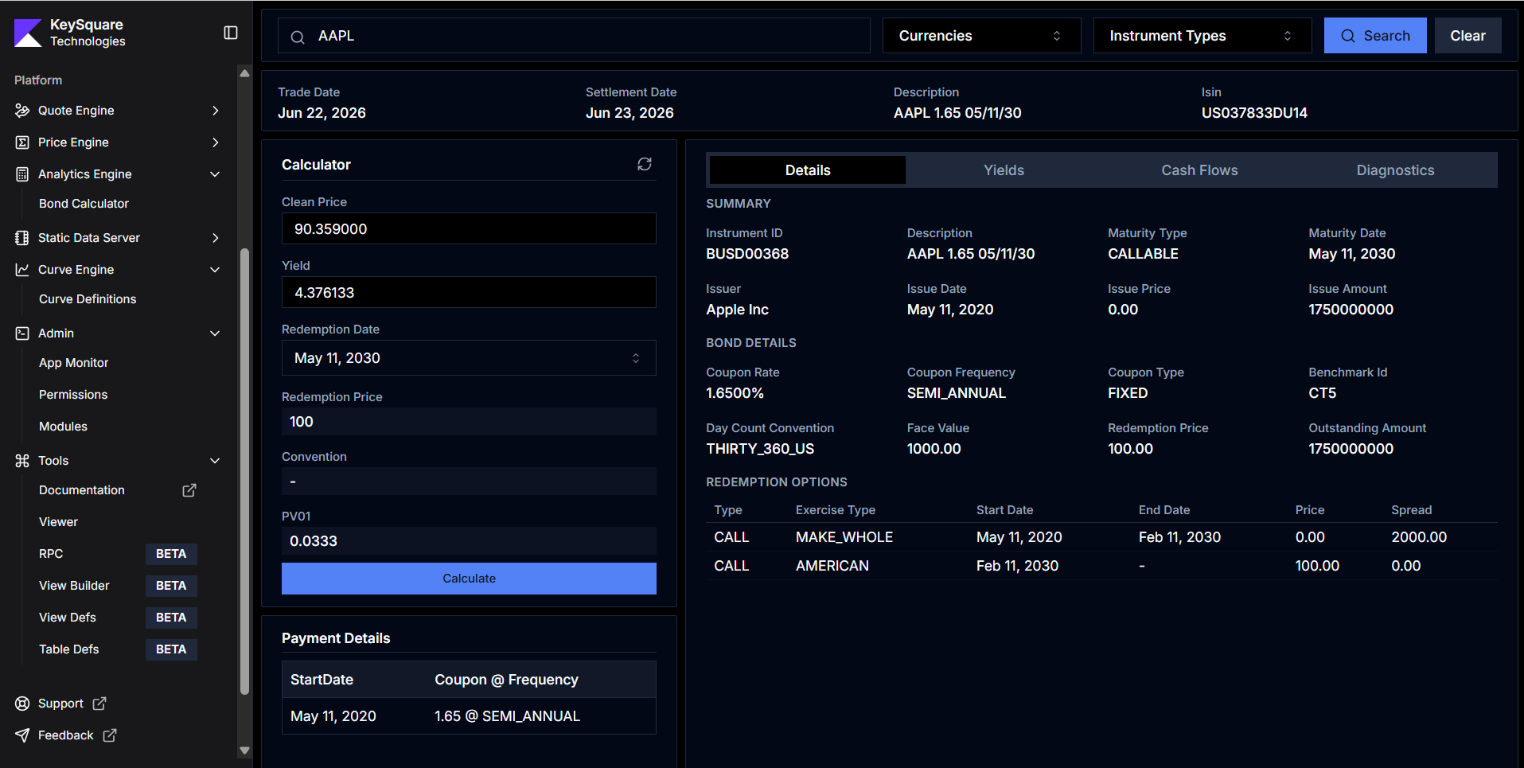
Calculator Inputs
| Field | Description |
|---|---|
| Clean Price | The clean price input. Editing this field and clicking Calculate will compute yield from price. |
| Yield | The yield input. Editing this field and clicking Calculate will compute price from yield. |
| Redemption Date | The workout date to use for the calculation. Defaults to the yield-to-worst date computed by AE from the current price. For callable bonds this is a dropdown populated with all available call dates and the final maturity. |
| Redemption Price | The price at which the bond is expected to be redeemed on the selected redemption date. |
| Convention | Display-only. Shows the day count convention and other pricing conventions derived from the instrument. |
| PV01 | Display-only. The PV01 (price value of a basis point) computed from the current clean price and workout date. |
Calculate Button
Click Calculate to send a ValuationRequest to Analytics Engine. If you have edited the Clean Price, yield is recalculated from price. If you have edited the Yield, price is recalculated from yield.
The refresh icon (↺) next to the Calculator heading resets all fields to the values last published by Price Engine for this instrument.
Payment Details
Below the calculator inputs, the Payment Details table shows the coupon schedule — start date, coupon rate, and payment frequency. This is a static display derived from the instrument definition.
Results Panel
The right-hand panel shows results in four tabs: Details, Yields, Cash Flows, and Diagnostics.
Details Tab
Shows a structured summary of the instrument as held in Static Data Server.
| Section | Fields |
|---|---|
| Summary | Instrument ID, description, maturity type, maturity date, issuer, issue date, issue price, issue amount |
| Bond Details | Coupon rate, frequency, coupon type, benchmark ID, day count convention, face value, redemption price, outstanding amount |
| Redemption Options | For callable/puttable bonds: type (CALL/PUT), exercise type (AMERICAN/MAKE_WHOLE), start/end dates, price, spread |
Yields Tab
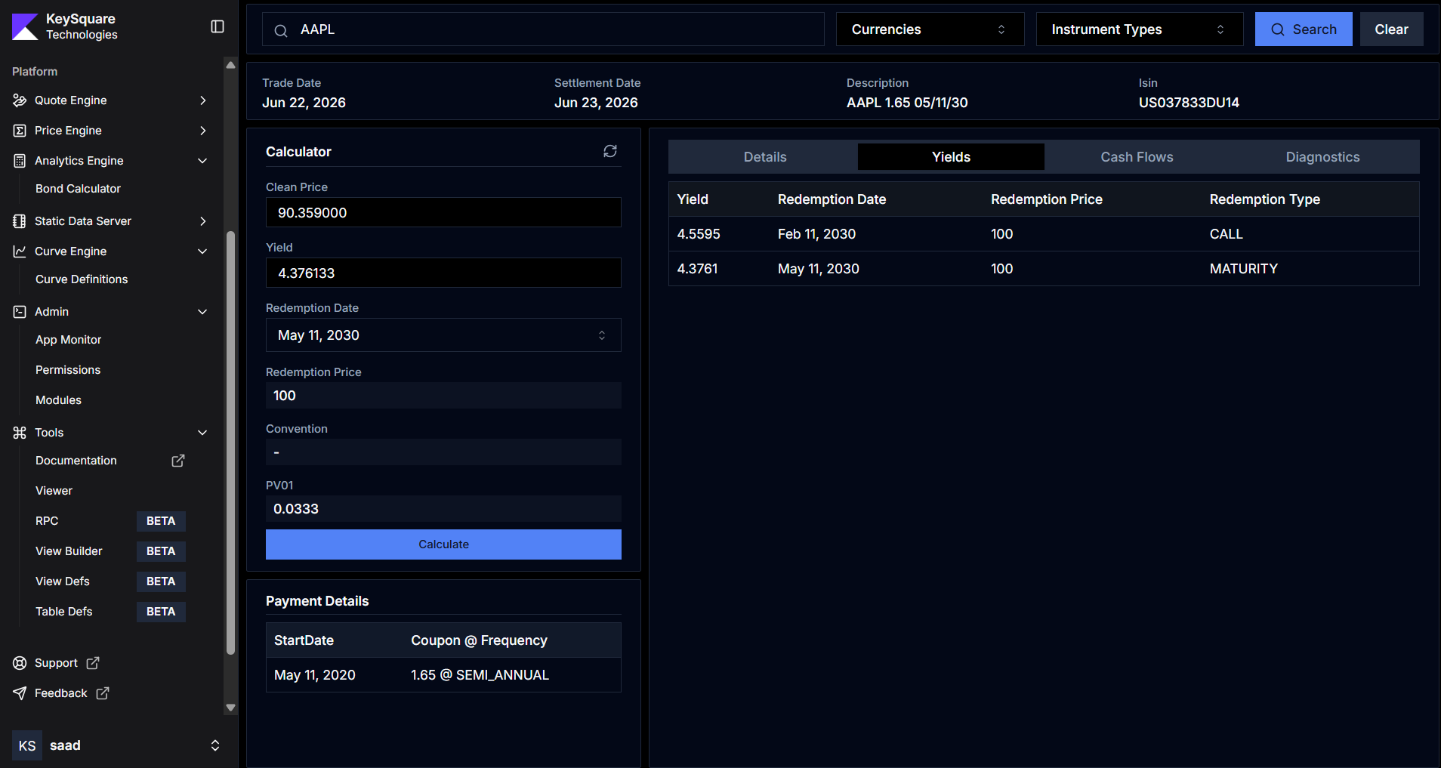
Shows the yield computed for every possible redemption date — all call dates plus the final maturity date — based on the current clean price. This is the output of the ComputeYieldsToCallDates RPC.
| Column | Description |
|---|---|
| Yield | Yield to this redemption date from the current clean price |
| Redemption Date | The call or maturity date |
| Redemption Price | The price at which the bond would be redeemed |
| Redemption Type | CALL for call options, MATURITY for the final maturity |
The row highlighted corresponds to the currently selected Redemption Date in the calculator panel. The yield-to-worst row (lowest yield across all call dates and maturity) is the one AE and Price Engine use by default.
If a yield is unexpectedly high or low for a specific call date, check whether the redemption price for that option is set correctly in the instrument definition. See Instruments for how to edit instrument fields.
Cash Flows Tab
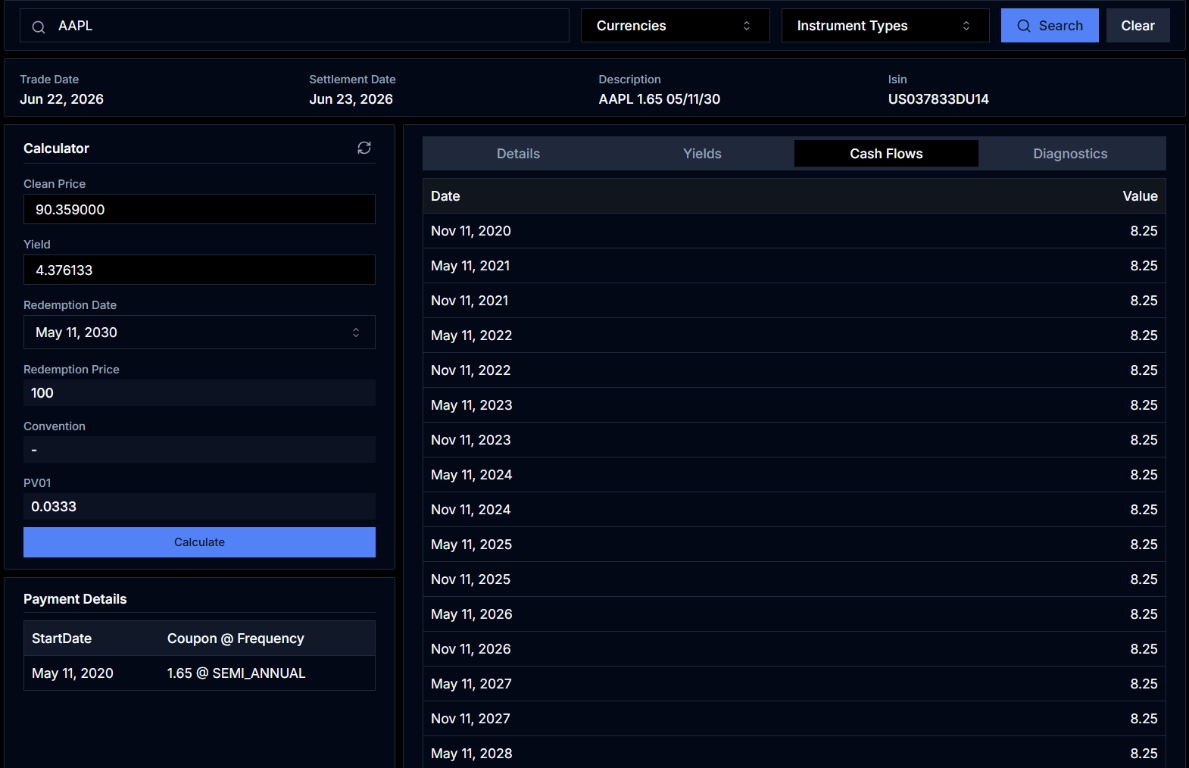
Shows the projected cashflow schedule produced by the ComputeCashflows RPC. Each row is a coupon payment or the final principal repayment.
| Column | Description |
|---|---|
| Date | Payment date (in MMM DD, YYYY format) |
| Value | Cashflow amount per 100 face value |
The list is scrollable for bonds with long tenors. All coupons are shown regardless of whether they have already paid — past cashflows are included for reference.
Cashflows are generated from the valuation date forward using the instrument's coupon schedule. For floating rate bonds, future coupon amounts are projections based on the current index curve.
Diagnostics Tab
Shows the raw internal state of the QuantLib bond model. This is the output of the GetBondDiagnostics RPC, returned as a flat key-value map.
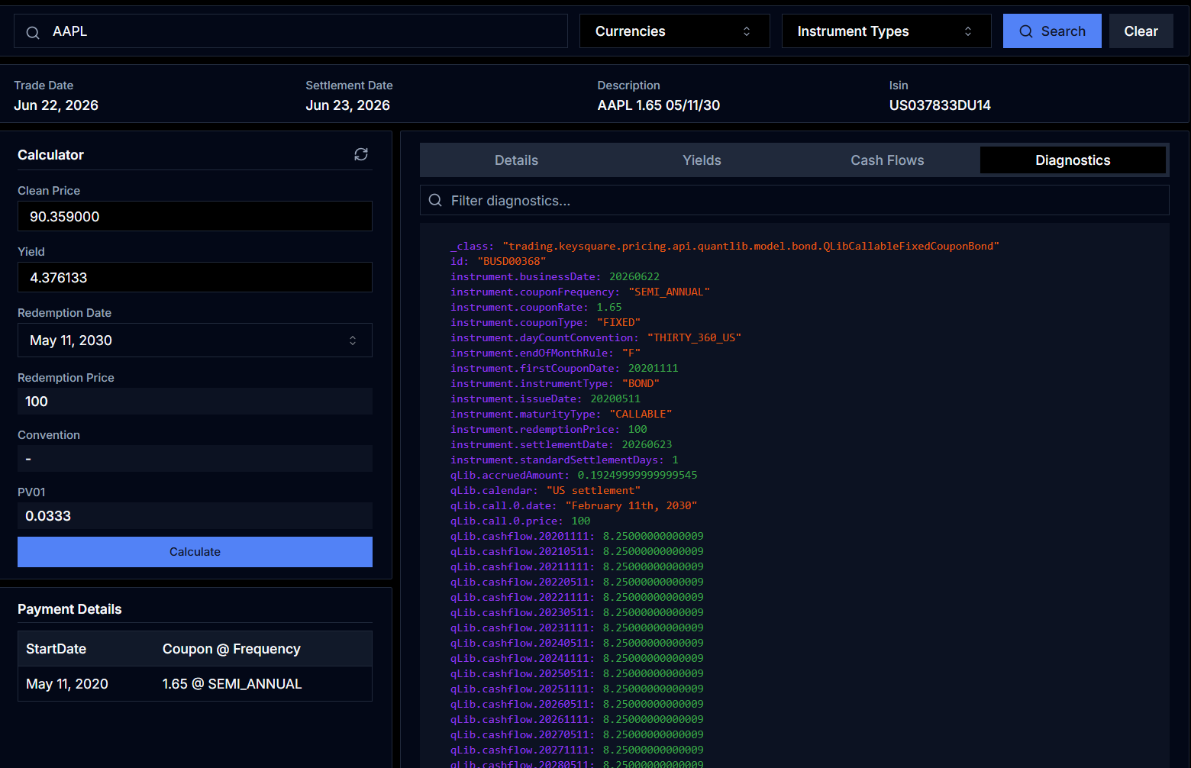
Use the Filter diagnostics... search box to narrow the display by key name.
Key fields to look for when troubleshooting:
| Key Prefix | Description |
|---|---|
_class | The QuantLib model class used (e.g. QLibCallableFixedCouponBond) |
id | Platform instrument ID resolved by AE |
instrument.* | Instrument fields AE read from SDS (coupon rate, type, dates, convention, settlement days, etc.) |
qLib.* | Internal QuantLib values (accrued amount, calendar, cashflows, call schedule) |
qLib.cashflow.* | All cashflow amounts keyed by date |
qLib.call.* | Call option schedule keyed by index |
Common Troubleshooting Checks
Yield looks wrong:
- Check
instrument.couponRateandinstrument.couponFrequencymatch the term sheet - Check
instrument.dayCountConvention— an incorrect convention (e.g.ACT_ACTvsTHIRTY_360_US) will produce materially different yields - Check
instrument.settlementDateandinstrument.standardSettlementDays
PV01 is zero or missing:
- Verify AE is returning
ok=truein theValuationRequestresponse (visible in the Tools → RPC panel) - Check
instrument.businessDate— if the valuation date doesn't match AE's current date the request will be rejected
Callable bond using wrong redemption date:
- Check
qLib.call.*entries to verify the call schedule was correctly parsed - Compare dates and prices against the Redemption Options shown in the Details tab
- If options are missing, verify the
redemptionOptionsEntryon the instrument in SDS
Using the RPC Tool for Direct Testing
You can call Analytics Engine RPCs directly without using the Bond Calculator. Navigate to Tools → RPC in Key UI, select analytics-engine as the application, and choose the RPC to invoke.
This is useful for:
- Testing a specific input that produces unexpected results in Price Engine
- Verifying AE behaviour after a configuration change or restart
- Checking that a specific instrument has loaded correctly before it starts pricing